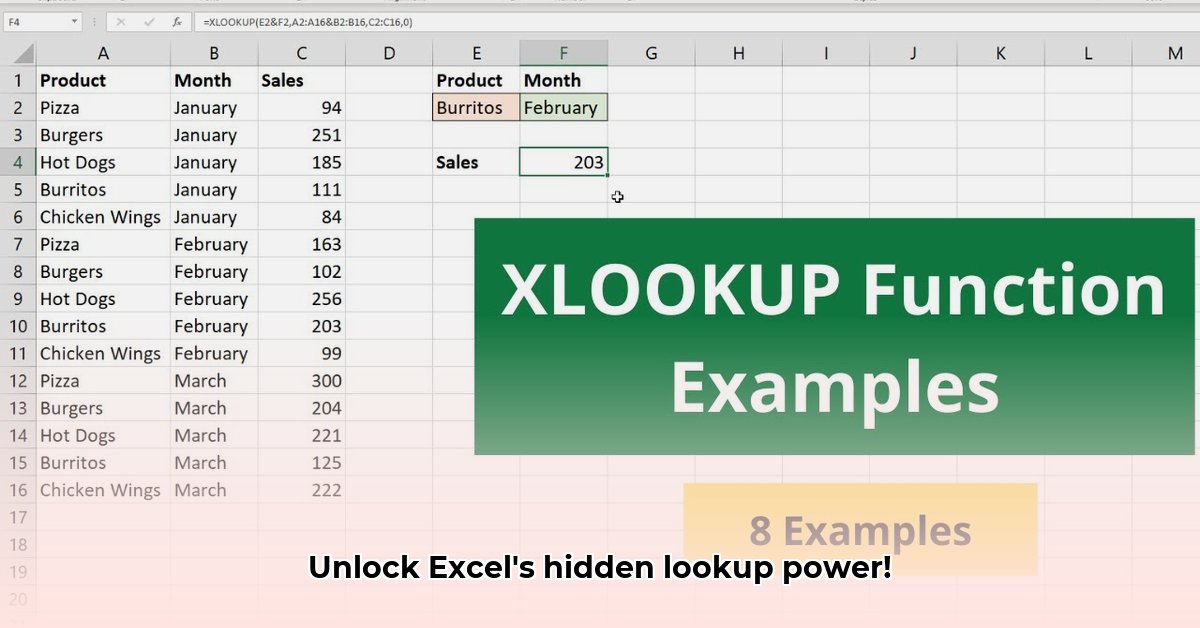
Tired of wrestling with VLOOKUP's limitations and the complexities of INDEX/MATCH? XLOOKUP, Excel's revolutionary data lookup function, offers a streamlined and powerful alternative. This comprehensive guide will equip you with the knowledge and skills to master XLOOKUP, regardless of your Excel expertise. We'll cover everything from fundamental concepts to advanced techniques, comparing it to older methods and offering practical, step-by-step examples. By the end, you'll be confidently using XLOOKUP to efficiently manage and analyze your data.
Understanding XLOOKUP's Core Components
Before diving into practical examples, let's familiarize ourselves with XLOOKUP's key arguments. These are the building blocks that determine how the function searches and retrieves data.
lookup_value: This is the value you're searching for within your dataset. It could be a product ID, a name, a date, or any other piece of information. (e.g., "Apple", 12345, "01/01/2024")lookup_array: This is the range of cells containing the values you're searching within. The function searches this array to find a match for yourlookup_value. (e.g., A1:A100)return_array: Once XLOOKUP finds yourlookup_value, this array determines which corresponding value is returned. (e.g., B1:B100)[if_not_found](optional): This argument specifies what to return if XLOOKUP doesn't find yourlookup_valuein thelookup_array. You can use a specific value (e.g., "Not Found", 0) or a formula.[match_mode](optional): This controls the type of match. The default is 0 (exact match). Other options include: -1 (approximate match, finding the largest value less than or equal tolookup_value, requires a sortedlookup_array), 1 (approximate match, finding the smallest value greater than or equal tolookup_value, requires a sortedlookup_array), and 2 (wildcard match).[search_mode](optional): This specifies the search direction. The default is 1 (search from the beginning of thelookup_array). -1 searches from the end. This is useful when yourlookup_arrayis sorted.
Practical Examples: XLOOKUP in Action
Let's illustrate XLOOKUP's capabilities with practical examples. Assume we have a spreadsheet with product names in column A and their corresponding prices in column B.
Example 1: Exact Match
To find the price of "Banana," use this formula:
=XLOOKUP("Banana", A:A, B:B, "Not Found")
This searches column A for "Banana." If found, it returns the price from column B; otherwise, it returns "Not Found". Isn't that easier than VLOOKUP?
Example 2: Approximate Match
Suppose column B contains sorted prices, and you want to find the price of the item closest to $5.00. The following formula will work:
=XLOOKUP(5,B:B,A:A,"Not Found",-1)
Because the match_mode is -1, XLOOKUP finds the largest value less than or equal to 5 in column B and returns the corresponding product name from column A.
Example 3: Wildcard Matching
To find all products containing "Apple" in their name (e.g., "Apple Pie" or "Apple Crisp"), use wildcards:
=XLOOKUP("Apple*", A:A, B:B, "No Match",,2)
The wildcard * matches any sequence of characters. match_mode 2 enables this wildcard functionality.
Advanced XLOOKUP Techniques: Mastering the Function
XLOOKUP's power extends beyond simple lookups. You can nest XLOOKUP functions for complex searches, combine them with other Excel functions to perform sophisticated data manipulations, and effortlessly handle large datasets.
XLOOKUP vs. Other Lookup Functions: A Comparison
How does XLOOKUP stack up against older methods like VLOOKUP, HLOOKUP, and INDEX/MATCH? The table below summarizes the key differences:
| Function | Speed | Versatility | Error Handling | Ease of Use |
|---|---|---|---|---|
| VLOOKUP | Slow | Limited | Basic | Moderate |
| HLOOKUP | Slow | Limited | Basic | Moderate |
| INDEX/MATCH | Moderate | High | Requires custom | Low |
| XLOOKUP | Fast | High | Excellent | High |
XLOOKUP typically offers the best combination of speed, versatility, and ease of use. However, INDEX/MATCH remains valuable for certain complex scenarios.
Troubleshooting Common XLOOKUP Errors
The most common errors arise from type mismatches (e.g., comparing text to numbers) or incorrect argument usage. Carefully review your formula and data to ensure consistency. A #N/A error typically signifies that no match was found.
Conclusion: Unlock XLOOKUP's Potential
XLOOKUP represents a significant advancement in Excel's data lookup capabilities. Its efficiency, flexibility, and intuitive design make it a must-have tool for any Excel user. Start experimenting with XLOOKUP today and experience the difference!
Key Takeaways:
- XLOOKUP is significantly faster and more versatile than VLOOKUP and HLOOKUP.
- Mastering XLOOKUP's arguments is fundamental to its effective use.
- XLOOKUP seamlessly handles both exact and approximate matches, greatly simplifying data retrieval.
- Wildcards provide unparalleled flexibility for pattern-based searches.